How to Bypass iCloud Mail Attachment Limits Without Mail Drop Links
Why iCloud Mail uses Mail Drop for large files
iCloud Mail has a smaller normal attachment limit than many people expect. When Apple Mail sees a file that is too large, it may offer Mail Drop, which uploads the file to iCloud and sends a download link instead of a normal attachment.
Mail Drop is useful in some cases, but it is still a link. The recipient has to open a browser, download from Apple, and do it before the link expires.
- Some recipients prefer or require real attachments in the email record.
- Corporate filters may treat unknown download links cautiously.
- Mail Drop changes the delivery experience from email attachment to cloud download.
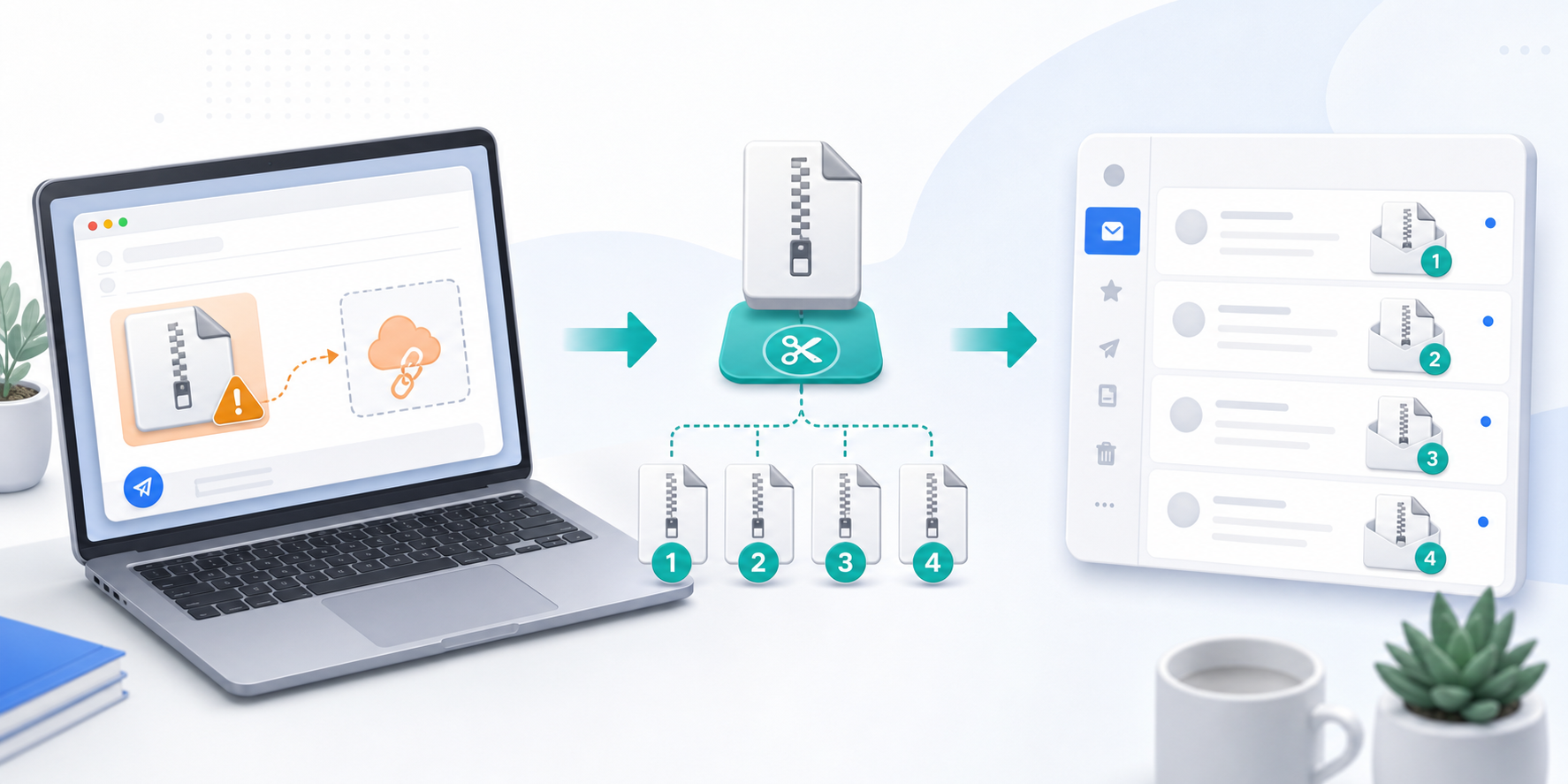
How to send the file as real attachments instead
SendSplit keeps the email workflow while avoiding the single-message size limit. It splits the file into parts small enough for inbox delivery.
- Save the file locally from your Mac, iPhone, iPad, or iCloud Drive.
- Open sendsplit.com/upload-to-send in a browser.
- Upload the file or ZIP archive, up to 200MB.
- Choose 10MB or 20MB splits for iCloud and mixed-recipient delivery.
- SendSplit emails the recipient numbered ZIP parts as real attachments.
When to avoid Mail Drop links
Avoid Mail Drop when the recipient needs the file preserved in their inbox, cannot access iCloud links, or works in an environment where download pages are blocked.
- Legal, HR, accounting, and government files that should stay attached to the email thread.
- Recipients who do not use Apple devices or iCloud accounts.
- Files that should not depend on link expiry or cloud permissions.
Tips for Apple users
If you are sending from an Apple device, keep the process simple: download the file first, send it through SendSplit, then share the password separately if you enable encryption.
- Use 10MB splits for the safest cross-provider delivery.
- Zip a folder before uploading it from macOS.
- Enable password protection for private documents, scans, or financial files.
Mail Drop vs Real Email Attachments
Mail Drop is Apple's link-based workaround. It can be convenient for personal sharing, but it changes the recipient experience. Instead of seeing a normal attachment, the recipient receives a link, opens a browser, and downloads the file from Apple. That can be a problem when the recipient's company blocks download pages or when the file needs to remain attached to a case, invoice, or approval email.
SendSplit is better when the email itself must carry the file. Each part is a normal attachment, and the recipient does not need to understand iCloud, Apple IDs, or Mail Drop expiry rules.
Tips for Mac, iPhone, and iPad Users
- If the file is in iCloud Drive, download it locally before uploading to SendSplit.
- If you are sending a folder from macOS, compress it first so the folder structure stays intact.
- Choose 10MB splits for recipients outside the Apple ecosystem or inside a company network.
- Send the password separately if you enable encryption for private documents.
Keeping Apple Workflows Simple
You can still prepare the file in the normal Apple workflow: export from Pages, Keynote, Numbers, Photos, Finder, or Files, then upload that finished file to SendSplit. The recipient does not need to know whether the file started on a Mac, iPhone, or iPad; they simply receive standard attachment parts in their inbox.
Do not let iCloud turn every large attachment into a Mail Drop link. Use SendSplit to deliver large files as real email attachments. Try SendSplit.